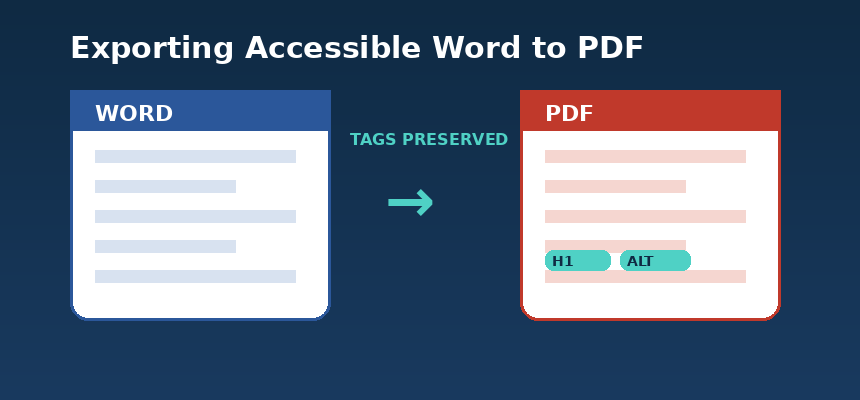
Exporting accessible Word to PDF is one of the most overlooked steps in digital publishing, and one of the most damaging when it goes wrong. Many organizations spend hours building accessible Word documents, complete with heading structures, alt text, and reading order, only to watch every tag disappear the moment they hit “Save as PDF.” The result is a polished-looking file that a screen reader cannot navigate, leaving people with disabilities locked out of content that was meant for everyone.
If your team publishes reports, policies, or marketing materials as PDFs, understanding how to preserve accessibility during conversion is not optional. It is a compliance requirement under WCAG and Section 508, and it is the right thing to do for everyone. Producing a WCAG compliant PDF is now a baseline expectation for government, education, and enterprise publishing, not a nice-to-have. This guide shows how to keep your tags intact when exporting accessible Word to PDF.
Why Exporting Accessible Word to PDF Often Fails
Word documents store accessibility information such as headings, lists, tables, alt text, and reading order as structural tags. PDFs use a similar tagging system, but the two formats do not speak the same language. When you use “Print to PDF” or a low quality converter, that structure gets flattened into plain visual layout. The PDF looks identical, but a screen reader sees nothing but disconnected text and floating images.
This is frustrating for accessibility teams who did everything right inside Word, only to have their careful work undone. The encouraging news is that the fix is straightforward once you know which settings matter and which shortcuts to avoid. Getting exporting accessible Word to PDF correct the first time saves significant rework for editors later.
Prepare Your Word Document Before You Convert
Before exporting accessible Word to PDF, clean up the source file. A messy Word document produces a messy PDF, no matter how good your export settings are. A genuinely screen reader accessible PDF starts with a clean, well-tagged Word file, not with settings you apply after the fact.
- Use built-in Heading styles instead of manually bolding text to fake a heading look.
- Add meaningful alt text to every image, chart, and icon.
- Set a logical reading order, especially in documents with columns or text boxes.
- Use real tables with header rows instead of tab-spaced text styled to look like one.
- Run the built-in Accessibility Checker under the Review tab and resolve every flagged issue.
These steps take a few extra minutes, but they determine whether your final PDF is genuinely usable or simply visually convincing to a sighted reader.
Use the Right Export Settings for an Accessible Word to PDF Workflow
This is where most accessibility work quietly disappears. In Microsoft Word, choose File, then Save As, then PDF, and click Options before saving the file. Confirm that “Document structure tags for accessibility” is checked. Skipping this single checkbox is the single most common reason tags vanish during conversion.
Avoid virtual printer drivers and any “Print to PDF” option for documents that must remain accessible. These tools rasterize the layout and strip tag data, leaving no structure for assistive technology.
Verify Tags After Exporting Accessible Word to PDF
Never assume the export worked. Open the finished PDF in Adobe Acrobat Pro and check the Tags panel. You should see a nested structure that mirrors your Word headings, lists, and tables. Run the Accessibility Checker to catch any remaining issues, such as missing alt text or an incorrect reading order.
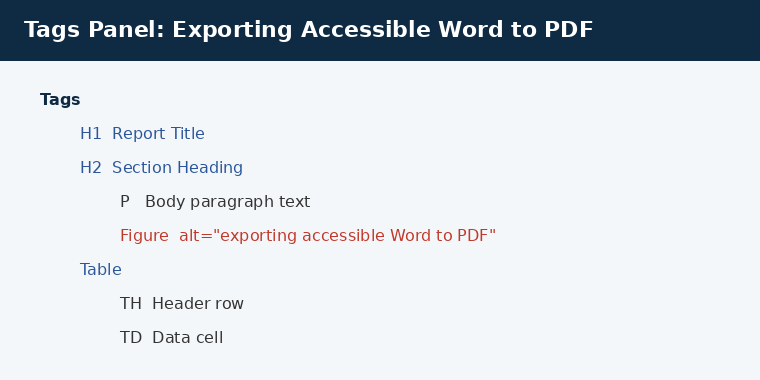
Figure: A properly tagged PDF mirrors the Word document’s heading and alt-txt structure.
For teams without Acrobat Pro, the free PAC tool referenced by the PDF Association offers a reliable second opinion against WCAG and PDF/UA standards.
Common Mistakes That Break Accessibility Tags
Even careful teams run into the same handful of problems again and again. If your PDF is not accessible after a Word export, the cause is almost always one of these recurring issues.
- Saving from a scanned or image-based Word file, which has no real text underneath to tag.
- Forgetting to set the document language, which quietly breaks screen reader pronunciation.
- Using decorative images without marking them as decorative, so screen readers announce clutter.
- Skipping table header tags, which makes data tables confusing for assistive technology.
- Exporting from an outdated Word version that lacks full tagging support for newer PDF features.
Each of these problems is easy to fix once you know to look for it, but nearly impossible to spot without a dedicated review step built into your process. These issues surface most often when exporting accessible Word to PDF quickly, without a dedicated review step.
Build Accessibility Into Your Publishing Workflow
The most reliable way to protect accessibility during conversion is to treat it as a required checkpoint rather than an afterthought squeezed in at the end. Add a short review to your publishing checklist: confirm heading styles, confirm the structure tags checkbox, and confirm the Tags panel in the finished PDF. This small habit prevents the frustrating experience of a document reaching your audience broken.
Organizations managing large volumes of documents benefit from a repeatable process rather than relying on individual judgment each time. A documented workflow also makes it easier to train new staff and demonstrate compliance during an external audit.
If your team needs support building or auditing this workflow, Rapson Technologies’ digital accessibility services can review your documents, test them against WCAG 2.1 and PDF/UA standards, and help you set up a conversion process that keeps tags intact every time.
For a deeper technical reference on tagged PDF requirements, the PDF Association‘s accessibility resources explain how PDF/UA structure elements map back to common Word features.
Final Thoughts on Exporting Accessible Word to PDF
Getting this right protects more than a compliance checkbox; it protects a real person’s ability to read, understand, and act on your content. Exporting accessible Word to PDF does not require expensive software or a specialized degree. It requires a consistent process: clean source formatting, the correct export setting, and a verification step before publishing anything.
Skip any one of those three steps and tags quietly disappear, often without anyone noticing until a frustrated user reports the problem. Build the habit once, and every future PDF your organization publishes will be genuinely usable by everyone, not only by people without disabilities.
Exporting accessible Word to PDF ?
Talk to Rapson Technologies’ accessibility experts today.
