Is Your PDF Accessible? Here’s How to Check in 5 Minutes
If you’ve ever wondered how to check if a PDF is accessible, you’re not alone. Thousands of businesses publish PDFs every day — reports, forms, brochures, invoices — without realizing that many of these documents are invisible to screen readers, unusable with a keyboard, or simply too confusing for people with disabilities to navigate. The good news? You don’t need to be a developer or an accessibility expert to find out. In the next five minutes, you’ll learn exactly how to check if a PDF is accessible using free, simple tools.
Why Checking PDF Accessibility Matters
Before we get into the steps, let’s talk about why this matters. Under laws like the ADA and Section 508, organizations are legally required to make digital documents — including PDFs — accessible to people with disabilities. An inaccessible PDF can lock out users who rely on screen readers, exclude people with visual impairments, and even expose your business to costly lawsuits. Beyond compliance, accessible PDFs simply reach more people, which is a win for everyone.
That’s why learning how to check if a PDF is accessible isn’t just a “nice to have” skill anymore — it’s essential for anyone who publishes documents online.
Step 1: Check the Document’s Tags
The single most important thing to check is whether your PDF has proper tags. Tags are the invisible structure (headings, paragraphs, lists, tables) that screen readers use to understand and read a document aloud.
- Open your PDF in Adobe Acrobat Pro.
- Go to View > Show/Hide > Navigation Panes > Tags.
- If you see a “No Tags” message, your PDF is not accessible.
This is the fastest way to check if a PDF is accessible, and it takes less than a minute once you know where to look.
Step 2: Run the Built-In Accessibility Checker
Adobe Acrobat Pro includes a free built-in tool specifically designed for this purpose:
- Go to Tools > Accessibility > Full Check.
- Click Start Checking.
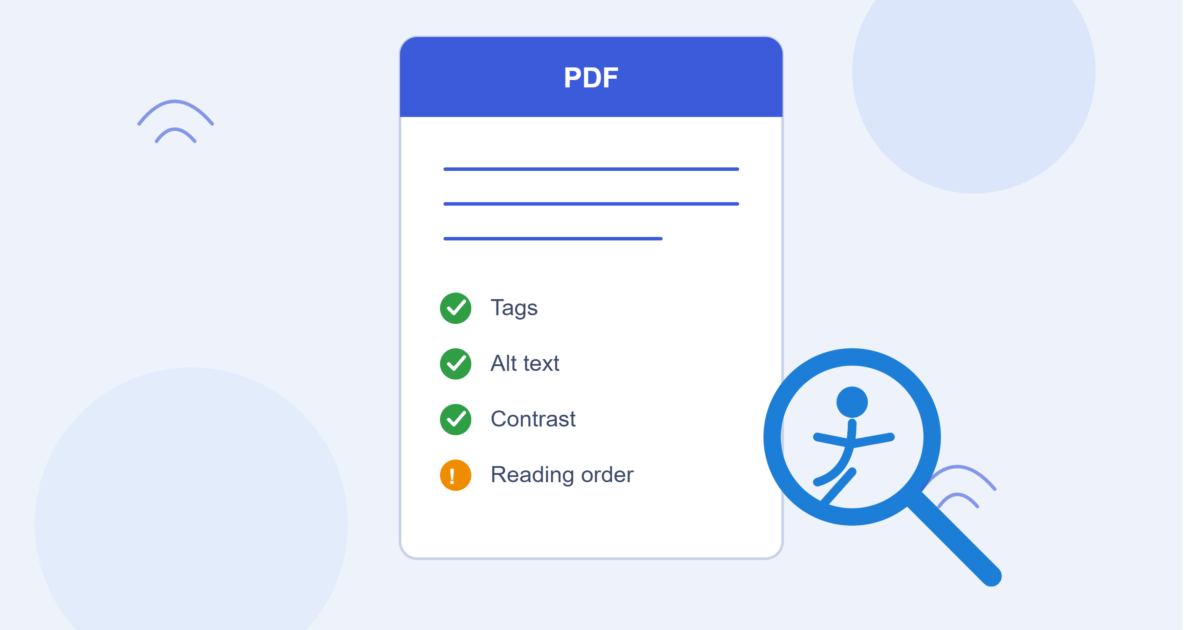
- Review the report for errors related to reading order, alt text, color contrast, and form fields.
This automated report is one of the quickest ways to check if a PDF is accessible without manually inspecting every element.
Step 3: Test With a Screen Reader
Automated checkers catch a lot, but not everything. To truly understand how to check if a PDF is accessible, you should also test it manually using a screen reader like NVDA (free) or VoiceOver (built into Mac).
- Turn on the screen reader.
- Navigate through the PDF using only your keyboard (Tab, arrow keys, Enter).
- Listen to whether headings, links, and images are announced correctly.
If the screen reader skips content, reads things out of order, or says “unlabeled image,” your document needs work.
Step 4: Check Color Contrast and Text Readability
Accessibility isn’t only about screen readers — it’s also about visual clarity. Low-contrast text is difficult for people with low vision or color blindness to read.
- Use a free tool like WebAIM’s Contrast Checker to test text and background color combinations.
- Aim for a contrast ratio of at least 4.5:1 for normal text.
This simple visual check is often overlooked, but it’s a critical part of any real process for how to check if a PDF is accessible.
Step 5: Verify Alt Text on Images
Every meaningful image in your PDF needs descriptive alt text so screen reader users understand what’s being shown. Decorative images, on the other hand, should be marked as “artifact” so they’re skipped entirely.
- In Acrobat, right-click an image and select Edit Alt Text.
- Make sure the description is clear and specific — not just “image1.jpg.”
Missing or vague alt text is one of the most common reasons a PDF fails accessibility checks, so don’t skip this step.
A Quick 5-Minute PDF Accessibility Checklist
Here’s a short recap of how to check if a PDF is accessible in five minutes or less:
- Check for tags (30 seconds)
- Run the built-in accessibility checker (1 minute)
- Test with a screen reader (2 minutes)
- Check color contrast (1 minute)
- Verify alt text on images (30 seconds)
Short on time? Automated tools can scan your entire document library far faster than doing it manually page by page.
Common Mistakes That Make PDFs Inaccessible
Even well-meaning teams get this wrong. Some of the most frequent issues include:
- Scanned documents saved as images with no text layer at all
- Missing document titles and language settings
- Tables without proper header rows
- Form fields with no labels
- Reading order that doesn’t match the visual layout
If any of these sound familiar, it’s a strong signal that your PDF needs remediation, not just a quick fix.
The Real Cost of Skipping This Step
Unfortunately, many organizations only think about accessibility after receiving a complaint or a demand letter. That’s a frustrating and expensive way to learn a lesson that’s actually simple to avoid. Investing five minutes now to check if a PDF is accessible can save you significant legal and reputational trouble later — and it makes your content genuinely usable for a wider audience.
Final Thoughts
Now that you know how to check if a PDF is accessible, you can start reviewing your existing documents today. It doesn’t take a specialized degree — just the right tools and a five-minute process you can repeat for every file you publish. But if you manage dozens or hundreds of PDFs, manual checks aren’t realistic long-term. That’s where automated scanning becomes invaluable.
Ready to Apply These Insights to Your Business?
Talk to our Digital Accessibility Specialists — free consultation, tailored to your specific challenge.
